Why Use Pay Now?
Pay Now links are integrated within existing billing functionality, allowing payments to be made from anywhere with no login required, seamlessly incorporated into Synergetic’s finance module – reducing admin hassle and ensuring timely payments.
How to Configure Pay Now
To use Pay Now, Synergetic must be updated to version 72 or later. For optimal performance with Synergetic Payments, we recommend using the latest available version.
Prerequisites:
You have signed the Synergetic Stripe Product Agreement, available from your CSM
You have completed Stripe registration using the provided Connect account URL (refer to this article)
You have been informed that your secure Stripe integration connection has been completed
Service Suite, Events Portal, and Core API are active on your site (installation of Service Suite will be confirmed when your site connection is configured)
When upgrading to 71.70, the systems team can assist with activation of the modules above at no additional cost. Please make an upgrade booking and let the team know you are interested in trying Pay Now. Synergetic Upgrades
Other tasks you may wish to complete:
Configuring your Connected Stripe account to enable automatic email receipts
Configuring surcharges to pass transaction costs onto the payor Stripe Surcharges
Getting Started with Synergetic Stripe Automated Payout Posting
Attend a Stripe webinar and / or request professional services assistance with financial reconciliation procedures when using Stripe for Synergetic payments. Professional Services Webinars, Training & Consulting
1. Configure Stripe Merchant and Pay Now base URL
Navigate to System → Online Payments Maintenance
If it does not already exist, add a Merchant with the “Gateway Provider” of STRIPE
Leave the Password blank (your Stripe details have already been configured and are stored elsewhere in the system)
With the Stripe merchant selected, click the “Pay Now URL” button to populate the base URL for your site.


2. Activate Pay Now feature toggle
Navigate to System → Configuration Maintenance
Search for PayNow to find the FeatureToggle | PayNow key
Set the Value to “true” by ticking the box

3. Verify and Test
Create a test statement run for a few “friendly” users. Many schools like to use staff who also have children at the school
In Email Statements / Invoices, you can add a Pay Now link as a merge field into the accompanying email

Tip: To display the Pay Now link as a button, set the Message Type to HTML Raw (Including tags) and use the following code snippet.

TIP: After setting the Message Type to HTML Raw, you may need to convert the rest of your email body to HTML format. There are many online tools available to assist with this.
Use the “test mode” to send all statements in the run to a test email address
When you receive the email, click the link and your browser will load the Pay Now payments page. This is a live page. You can make a small payment (>$1) with a valid credit card to test the payment page.
To check the status of a payment, use the Online Receipts Report
Successful payments will be automatically recorded in Synergetic finance

4. Configure your statement email template to include Pay Now by default
When you are satisfied with your Pay Now email format, you can configure your statement email template so that all Statement / Invoice / Reminder emails include the Pay Now link. Refer to the following documentation:
Synergetic Financial Configuration - Debtors tab - Page 3 sub-tab
Synergetic Financial Configuration - Debtors tab - Sub Ledgers sub-tab
Pay Now URLs Are Debtor-Specific
Each Pay Now URL is uniquely linked to an individual debtor, enabling direct payment into their account with full Synergetic integration. Payments made via a specific URL are automatically applied to the corresponding debtor’s account.
To maintain accuracy and data integrity, schools must not reuse, or share Pay Now URLs across different debtors. Always generate a new URL for each recipient.
5. Communicate with Your Community
Inform parents about the new feature. You may wish to provide screenshots and inform them that they can verify the base URL in their browser when making a payment. This will help them feel confident their payment is going straight to the school.
6. Configure header logo (Optional for on-prem schools only only)
Logo specs:
Recommended dimensions: 1773 x 328 OR 470 x 75
Aspect ratio: 5:1
File format: svg
Steps:
Rename your file to tes-synergetic-events-portal-logo-footer.svg
Navigate to EventBooking > assets > img
Replace tes-synergetic-events-portal-logo-footer.svg with your file.
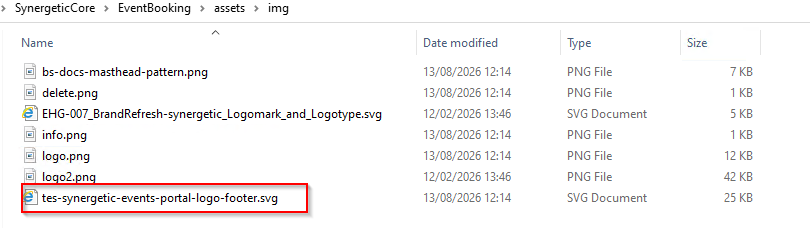
If you replace the logo, make sure to clear the cache so the changes are applied correctly.
Enjoy the Benefits
Use the power of our partnership with Stripe and our unmatched school financial management software to get your school paid quickly and safely, with less administration for schools and more convenience and choice for parents.
For further assistance or detailed instructions, please contact your CSM or our support team.


Was this article helpful?
That’s Great!
Thank you for your feedback
Sorry! We couldn't be helpful
Thank you for your feedback
Feedback sent
We appreciate your effort and will try to fix the article